Best way to handle permissions in your Flutter app
- David Serrano Canales
- May 14, 2022
Table of Contents
When we request permissions in our app through the relevant APIs that grant access to sensitive system features, it is very important that we have foreseen all possible cases in advance. For example, what happens if the user decides not to give permission? Or what happens if they deny the access forever?
Normally in these cases our intention as developers is to urge the user to grant said permission, since it is the only way to access unique and incredible features of our app. Unfortunately there are many scam applications that abuse sensitive permissions, so many users no longer trust anyone.
In this article I am going to show you how I handle these cases in my own applications. I always try to adjust the UI to the user’s decision, and if I see that they hasn’t granted the access to a certain permission, then I show them an explanatory text indicating why I am asking them to do so. Also, in case the permission is denied forever, I add a button so that they can easily go to the device settings to change it, and when they return to the app I try to detect if it has really been granted and then I update the UI accordingly.
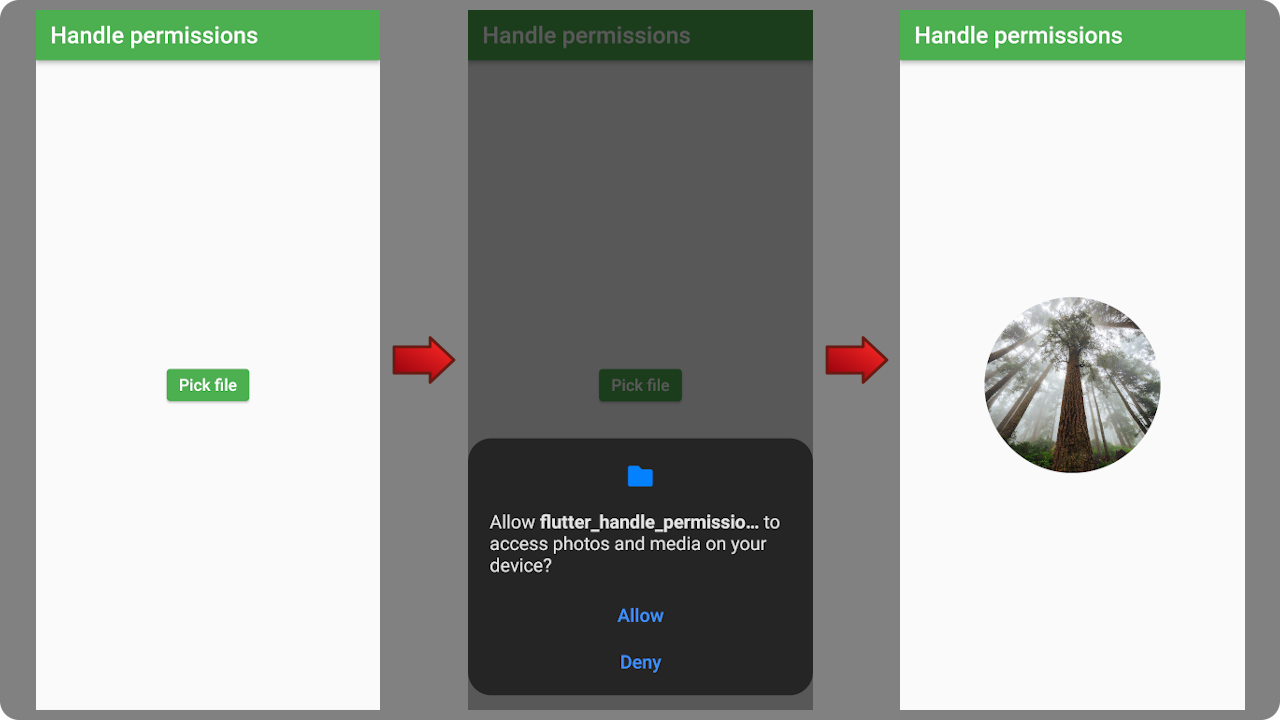
For this example, I’m going to create a simple application that asks for permission to choose an image from the filesystem and then displays it in the center of the screen:
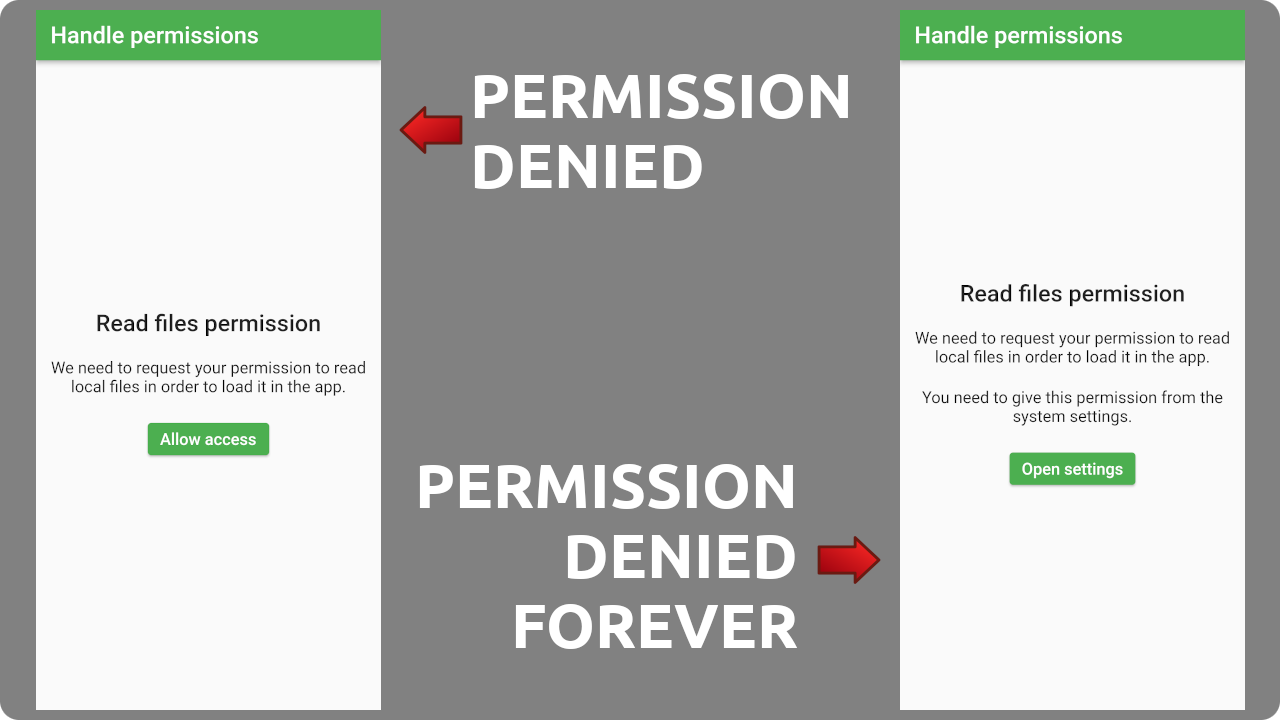
In case the user does not grant the permission, I offer a brief explanation about why am I asking this and add a button to request it again.
If the user rejects the permission and does not want to be asked again (Android), or if the user rejects the permission on iOS (on iOS it cannot be asked again) then I also show a brief explanation and indicate that they should go to system settings and grant the permission from there. In this case the button will direct them to the app permissions so they can easily accept it.
Now that we have seen what we are going to do, let’s go with the tutorial!
Project setup
Let’s create a new Flutter project:
flutter create flutter_handle_permissions
We are going to add the following dependencies in pubspec.yaml:
permission_handler: With this plugin we can request permissions on both Android and iOS
file_picker: We are going to use this plugin in this example to be able to select local files
provider: I am going to manage the state of the UI using this package. The management that I am going to do is very simple. If you want to learn how to manage state with
provider, I have a series of tutorials that starts with this introduction to Provider.
Our pubspec.yaml would look like this:
name: flutter_handle_permissions
description: A Flutter sample to demonstrate how to manage permissions.
publish_to: 'none'
version: 1.0.0+1

environment:
  sdk: ">=2.16.2 <3.0.0"

dependencies:
  flutter:
    sdk:flutter
  cupertino_icons: ^1.0.2
  permission_handler: ^9.2.0
  file_picker: ^4.5.1
  provider: ^6.0.2

dev_dependencies:
  flutter_test:
    sdk:flutter
  flutter_lints: ^1.0.0

flutter:
  uses-material-design: true
Add the read external storage permission to the AndroidManifest in the manifest level:
<uses-permission android:name="android.permission.READ_EXTERNAL_STORAGE"/>
Also, add the permission to read photos for iOS in Info.plist:
<key>NSPhotoLibraryUsageDescription</key>
<string>We need to request your permission to read your photos to load them into the app.
</string>
Modify the last section of Podfile so the plugin knows about the new permission:
# [...]

post_install do |installer|
  installer.pods_project.targets.each do |target|
    flutter_additional_ios_build_settings(target)
    target.build_configurations.each do |config|
      config.build_settings['IPHONEOS_DEPLOYMENT_TARGET'] = '12.3'

      config.build_settings['GCC_PREPROCESSOR_DEFINITIONS'] ||= [
        '$(inherited)',
        ## dart: PermissionGroup.photos
        'PERMISSION_PHOTOS=1',
      ]
      end
  end
end
Model creation
I am going to create an image_model.dart file in which I will create my ImageModel class which will manage the state of our application, as well as offer methods to request permission and select a file:
// lib/image_model.dart

import 'dart:io';

import 'package:file_picker/file_picker.dart';
import 'package:flutter/material.dart';
import 'package:permission_handler/permission_handler.dart';

// This enum will manage the overall state of the app
enum ImageSection {
  noStoragePermission, // Permission denied, but not forever
  noStoragePermissionPermanent, // Permission denied forever
  browseFiles, // The UI shows the button to pick files
  imageLoaded, // File picked and shown in the screen
}

class ImageModel extends ChangeNotifier {
  ImageSection _imageSection = ImageSection.browseFiles;

  ImageSection get imageSection => _imageSection;

  set imageSection(ImageSection value) {
    if (value != _imageSection) {
      _imageSection = value;
      notifyListeners();
    }
  }

  // We are going to save the picked file in this var
  File? file;

  /// Request the files permission and updates the UI accordingly
  Future<bool> requestFilePermission() async {
    PermissionStatus result;
    // In Android we need to request the storage permission,
    // while in iOS is the photos permission
    if (Platform.isAndroid) {
      result = await Permission.storage.request();
    } else {
      result = await Permission.photos.request();
    }

    if (result.isGranted) {
      imageSection = ImageSection.browseFiles;
      return true;
    } else if (Platform.isIOS || result.isPermanentlyDenied) {
      imageSection = ImageSection.noStoragePermissionPermanent;
    } else {
      imageSection = ImageSection.noStoragePermission;
    }
    return false;
  }

  /// Invoke the file picker
  Future<void> pickFile() async {
    final FilePickerResult? result =
        await FilePicker.platform.pickFiles(type: FileType.image);

    // Update the UI with the picked file only if
    // it has a valid file path
    if (result != null &&
        result.files.isNotEmpty &&
        result.files.single.path != null) {
      file = File(result.files.single.path!);
      imageSection = ImageSection.imageLoaded;
    }
  }
}
UI creation
Create an image_screen.dart file and paste the following. I’ve included explanatory snippets within the code:
// lib/image_screen.dart

import 'dart:io';

import 'package:flutter/material.dart';
import 'package:flutter_handle_permissions/image_model.dart';
import 'package:permission_handler/permission_handler.dart';
import 'package:provider/provider.dart';

class ImageScreen extends StatefulWidget {
  const ImageScreen({Key? key}) : super(key: key);

  @override
  State<ImageScreen> createState() => _ImageScreenState();
}

class _ImageScreenState extends State<ImageScreen> with WidgetsBindingObserver {
  late final ImageModel _model;
  bool _detectPermission = false;

  @override
  void initState() {
    super.initState();
    WidgetsBinding.instance?.addObserver(this);

    _model = ImageModel();
  }

  @override
  void dispose() {
    WidgetsBinding.instance?.removeObserver(this);
    super.dispose();
  }

  // This block of code is used in the event that the user
  // has denied the permission forever. Detects if the permission
  // has been granted when the user returns from the
  // permission system screen.
  @override
  void didChangeAppLifecycleState(AppLifecycleState state) {
    if (state == AppLifecycleState.resumed &&
        _detectPermission &&
        (_model.imageSection == ImageSection.noStoragePermissionPermanent)) {
      _detectPermission = false;
      _model.requestFilePermission();
    } else if (state == AppLifecycleState.paused &&
        _model.imageSection == ImageSection.noStoragePermissionPermanent) {
      _detectPermission = true;
    }
  }

  @override
  Widget build(BuildContext context) {
    return ChangeNotifierProvider.value(
      value: _model,
      child: Consumer<ImageModel>(
        builder: (context, model, child) {
          Widget widget;

          switch (model.imageSection) {
            case ImageSection.noStoragePermission:
              widget = ImagePermissions(
                  isPermanent: false, onPressed: _checkPermissionsAndPick);
              break;
            case ImageSection.noStoragePermissionPermanent:
              widget = ImagePermissions(
                  isPermanent: true, onPressed: _checkPermissionsAndPick);
              break;
            case ImageSection.browseFiles:
              widget = PickFile(onPressed: _checkPermissionsAndPick);
              break;
            case ImageSection.imageLoaded:
              widget = ImageLoaded(file: _model.file!);
              break;
          }

          return Scaffold(
            appBar: AppBar(
              title: const Text('Handle permissions'),
            ),
            body: widget,
          );
        },
      ),
    );
  }

  /// Check if the pick file permission is granted,
  /// if it's not granted then request it.
  /// If it's granted then invoke the file picker
  Future<void> _checkPermissionsAndPick() async {
    final hasFilePermission = await _model.requestFilePermission();
    if (hasFilePermission) {
      try {
        await _model.pickFile();
      } on Exception catch (e) {
        debugPrint('Error when picking a file: $e');
        // Show an error to the user if the pick file failed
        ScaffoldMessenger.of(context).showSnackBar(
          const SnackBar(
            content: Text('An error occurred when picking a file'),
          ),
        );
      }
    }
  }
}

/// This widget will serve to inform the user in
/// case the permission has been denied. There is a
/// variable [isPermanent] to indicate whether the
/// permission has been denied forever or not.
class ImagePermissions extends StatelessWidget {
  final bool isPermanent;
  final VoidCallback onPressed;

  const ImagePermissions({
    Key? key,
    required this.isPermanent,
    required this.onPressed,
  }) : super(key: key);

  @override
  Widget build(BuildContext context) {
    return Center(
      child: Column(
        mainAxisSize: MainAxisSize.min,
        children: [
          Container(
            padding: const EdgeInsets.only(
              left: 16.0,
              top: 24.0,
              right: 16.0,
            ),
            child: Text(
              'Read files permission',
              style: Theme.of(context).textTheme.headline6,
            ),
          ),
          Container(
            padding: const EdgeInsets.only(
              left: 16.0,
              top: 24.0,
              right: 16.0,
            ),
            child: const Text(
              'We need to request your permission to read '
                  'local files in order to load it in the app.',
              textAlign: TextAlign.center,
            ),
          ),
          if (isPermanent)
            Container(
              padding: const EdgeInsets.only(
                left: 16.0,
                top: 24.0,
                right: 16.0,
              ),
              child: const Text(
                'You need to give this permission from the system settings.',
                textAlign: TextAlign.center,
              ),
            ),
          Container(
            padding: const EdgeInsets.only(
                left: 16.0, top: 24.0, right: 16.0, bottom: 24.0),
            child: ElevatedButton(
              child: Text(isPermanent ? 'Open settings' : 'Allow access'),
              onPressed: () => isPermanent ? openAppSettings() : onPressed(),
            ),
          ),
        ],
      ),
    );
  }
}

/// This widget is simply the button to select
/// the image from the local file system.
class PickFile extends StatelessWidget {
  final VoidCallback onPressed;

  const PickFile({
    Key? key,
    required this.onPressed,
  }) : super(key: key);

  @override
  Widget build(BuildContext context) => Center(
        child: ElevatedButton(
          child: const Text('Pick file'),
          onPressed: onPressed,
        ),
      );
}

/// This widget is used once the permission has
/// been granted and a file has been selected.
/// Load the image and display it in the center.
class ImageLoaded extends StatelessWidget {
  final File file;

  const ImageLoaded({
    Key? key,
    required this.file,
  }) : super(key: key);

  @override
  Widget build(BuildContext context) {
    return Center(
      child: SizedBox(
        width: 196.0,
        height: 196.0,
        child: ClipOval(
          child: Image.file(
            file,
            fit: BoxFit.fitWidth,
          ),
        ),
      ),
    );
  }
}
Now simply modify the content of main.dart as follows:
import 'package:flutter/material.dart';
import 'package:flutter_handle_permissions/image_screen.dart';

void main() {
  runApp(const App());
}

class App extends StatelessWidget {
  const App({Key? key}) : super(key: key);

  @override
  Widget build(BuildContext context) {
    return MaterialApp(
      title: 'Flutter Demo',
      theme: ThemeData(
        primarySwatch: Colors.green,
      ),
      home: const ImageScreen(),
    );
  }
}
Conclusion
In this article I have shown how to manage the permission request in a user-friendly way:
If the user has denied the permission because they did not trust us, we show them a brief explanation to make them understand why we are asking for that permission.
If the user has denied the permission by mistake, we show them a button so that they can easily solve the problem.
In case they had to go to the system settings to grant the permission, we detect it when they return to the app and show them the corresponding screen automatically.
You can find the final sample here.
That’s all for today, thanks for reading this far and happy coding!